

Updating
How to update amo stickers depends on how you installed it.
Extension from the Chrome Web Store
The browser updates the extension from the store by itself — you don’t need to do anything. A new version reaches the store after review, so it sometimes arrives later than the archive and the userscript.
If you have the extension from the archive now, you can replace it with the extension from the store: remove the extension from the archive and install it from the Chrome Web Store. You will have to enter the GIF keys and your own bot token again; stickers and packs stay.
Extension from the archive
The archive doesn’t update by itself: the browser doesn’t know where to get a new version from.
- Download the new archive from the same link: amo-stickers.zip — it is always the latest version.
- Delete everything inside the extension folder, but keep the folder itself. Unpacking over the old files would leave files that are no longer in the new version.
- Unpack the new archive into the same folder.
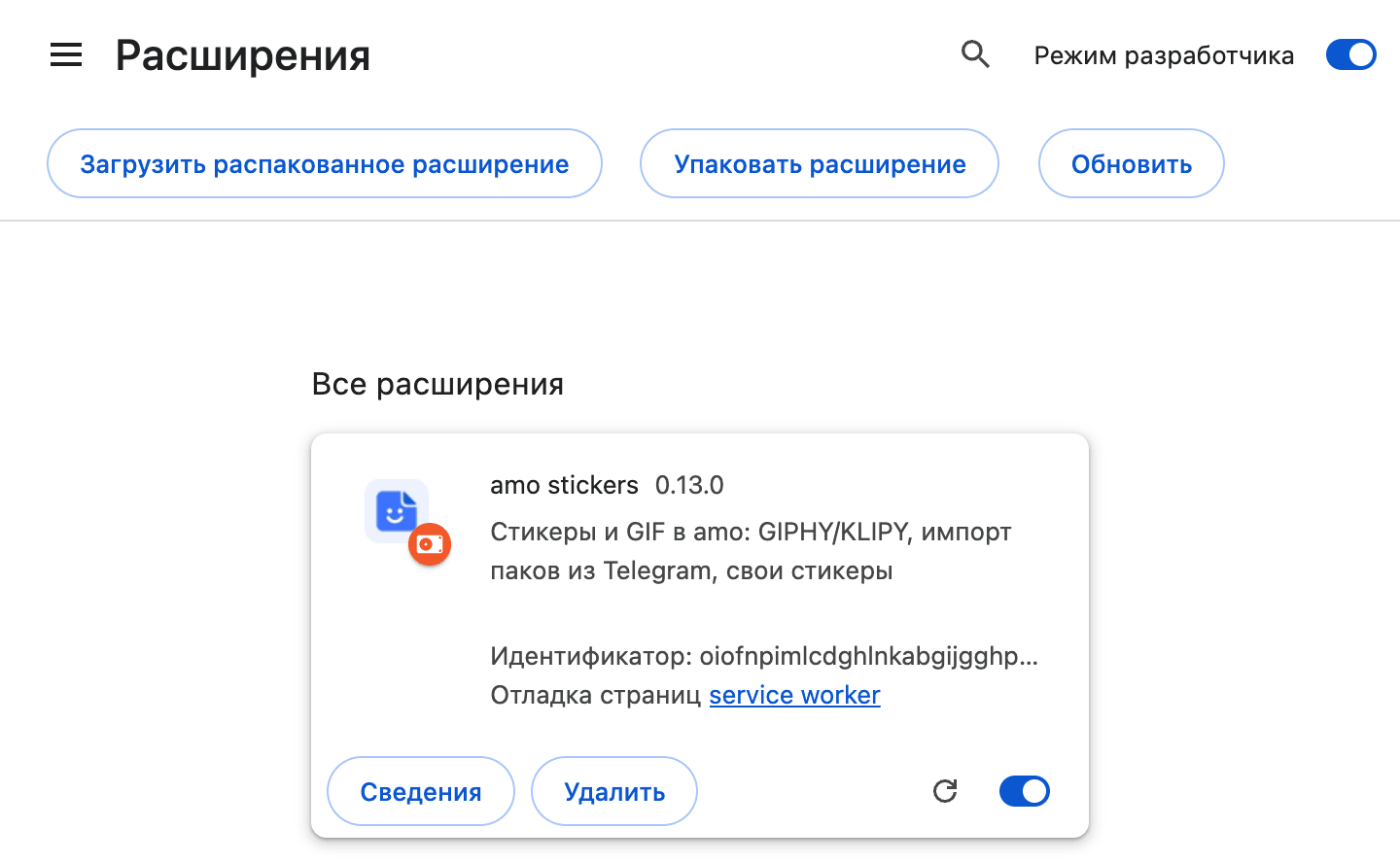
- On the extensions page (for example, ), click “Update” at the top of the page or the “Reload” icon (a circular arrow) on the amo stickers card.
- Reload the amo tab.
The same folder
Unpack the new version into the same folder as the old one. The browser treats an extension from a different folder as a new extension, and you will have to enter the GIF keys and your own bot token again.
The installed version is shown on the amo stickers card on the extensions page, the latest one — on the releases page.
Userscript
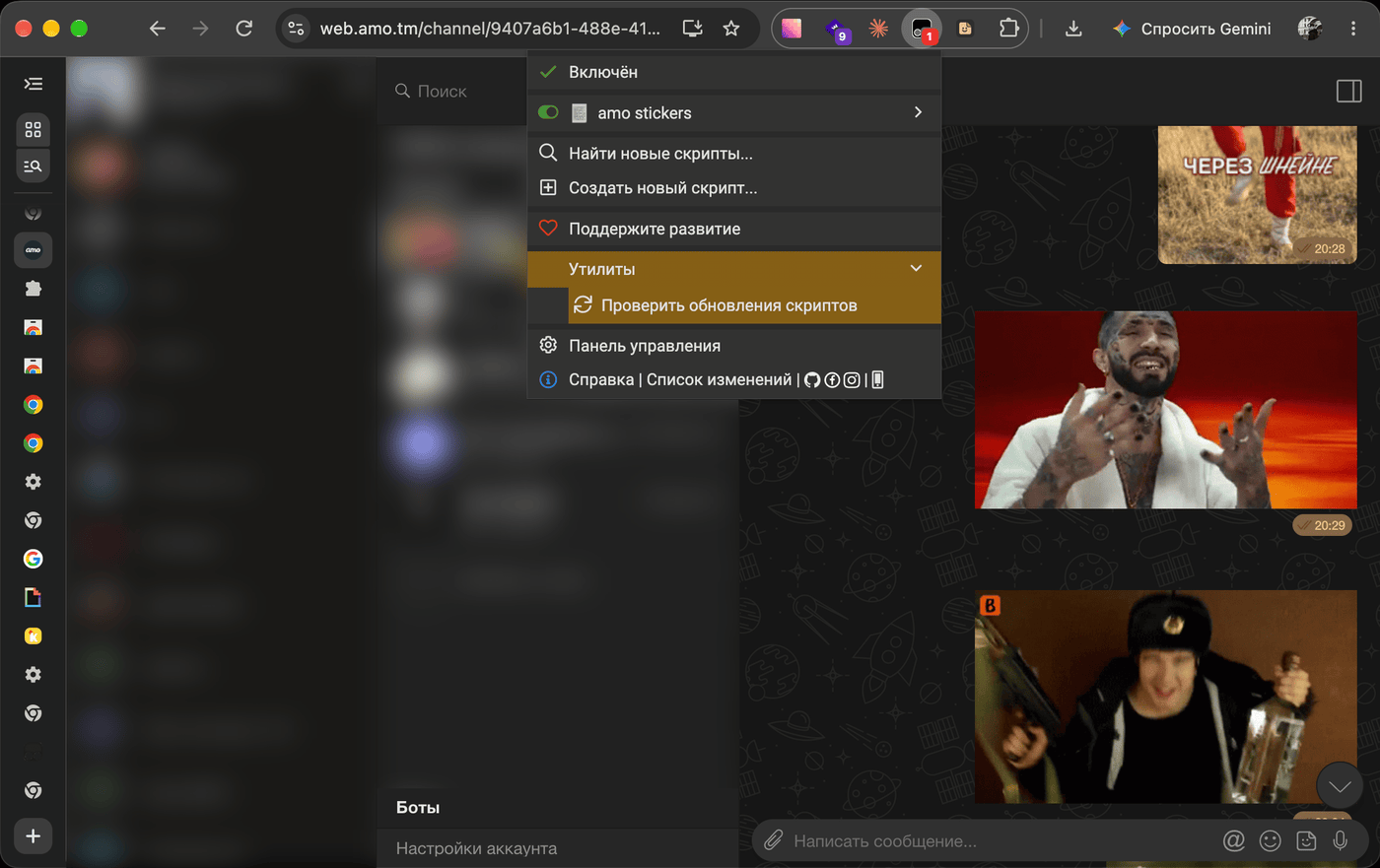
Tampermonkey checks for script updates and installs the new version by itself. To check right away, use the Tampermonkey icon menu: “Utilities” → “Check for userscript updates”. The new version will start working after you reload the amo tab.
In managers without guarantees — Violentmonkey, Userscripts in Safari — automatic updates aren’t tested. If the new version hasn’t arrived, install it manually from the link amo-stickers.user.js.