

Import from Telegram
You can add a whole Telegram sticker pack to amo stickers: the stickers will become GIFs and appear in the feed as a separate section. Static, animated (.tgs) and video stickers are converted.
You don’t need to set anything up to import: amo stickers downloads the pack through the Telegram Bot API with a built-in bot. You only need your own bot if the built-in one is unavailable — an error during import will tell you (see “Your own bot”).
1. Copy the pack link
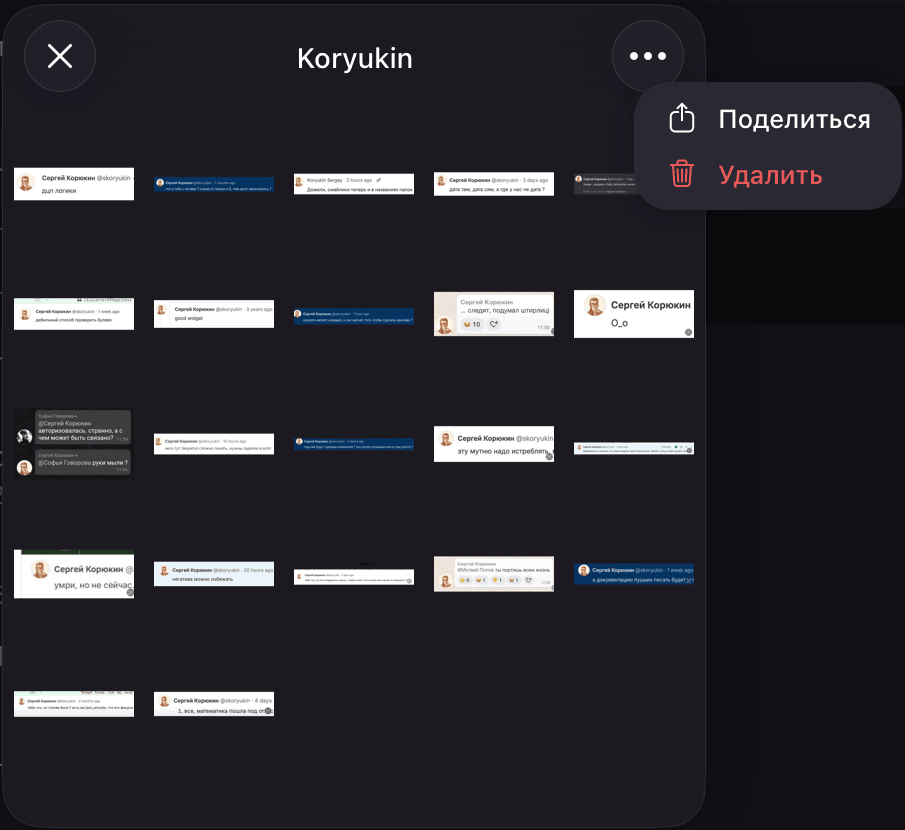
Click a sticker from the pack in a Telegram chat, open the “⋮” menu in the pack window and choose “Copy Link”.
The path is the same in the Telegram desktop app, the web version and on the phone; in some apps the menu is marked “…” rather than “⋮”. Telegram for macOS has no “Copy Link” item in the menu: choose “Share” and click the copy link button in the top right corner of the chat selection window. You can also copy the link to a pack you have already added from the settings: “Settings” → “Stickers and Emoji” → click the pack → the “⋮” menu → “Copy Link”.
The link looks like this: https://t.me/addstickers/Name. A link to an emoji pack (t.me/addemoji/Name) or just the pack name — the part of the link after the last / — works too.
2. Import the pack
- In amo stickers, open the “Stickers” mode and click “+” to the right of the section tabs — the “Add stickers” screen will open.
- At the top of the screen, choose “Telegram” if “Custom sticker” is open. Paste the link into the “Pack link” field — a pack card will appear under the field with the pack name and the number of stickers. If the pack is already imported, the card says that importing will update it. Click “Import” or press Enter. The first time the screen opens, a short guide on getting the pack link is expanded under the field; after that it’s collapsed — expand it with the “?” button next to the field.
- Wait for the import to finish: the pack card shows a progress bar and a sticker count, for example 12/40, and at the end the bottom of the panel shows Pack “Pack name” added. If you leave the “Add stickers” screen, the count goes on at the bottom of the panel. While the import is running, the panel doesn’t close if you move the cursor away from it.
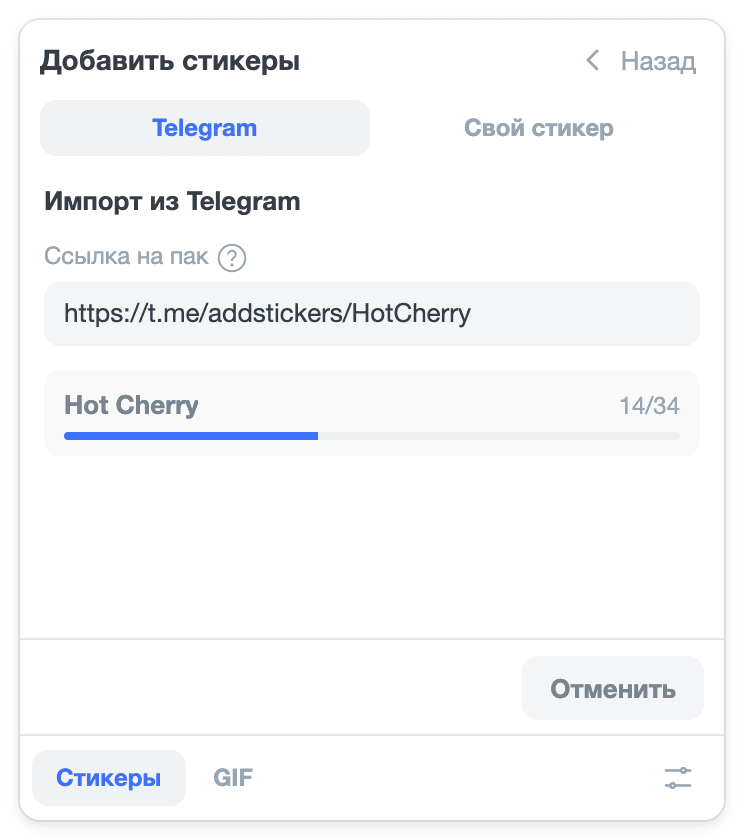
The pack will appear as a separate tab in the “Stickers” mode. The stickers of each pack are converted once during import — after that they are sent right away.
Changed your mind? Click “Cancel”: while the import is running, it takes the place of the “Import” button. Your library stays as it was before the import: a new pack won’t appear, and a pack imported earlier keeps its previous stickers. The bottom of the panel shows Import canceled, and the link stays in the field — you can start the import again.
If it didn’t work
An import error appears under the “Pack link” field, or at the bottom of the panel if you’ve left the “Add stickers” screen. If no pack card appears under the field, you can still import: if something is wrong, the import will show an error.
- “The built-in Telegram bot is unavailable. Enter your own bot token in settings” — Telegram refused the built-in bot: it hit the request limit or its token was revoked. Try the import again later or set up your own bot.
- “Enter the bot token in settings” — your amo stickers build has no built-in bot, for example it was built from source. Set up your own bot.
- “Couldn’t parse the link. Expected t.me/addstickers/Name” — the field doesn’t contain a pack link. Copy it again following step 1.
- “HTTP 401 … Unauthorized” — Telegram didn’t accept your token. Check that the token is copied in full, or get it again following the “Copy the token” step and paste it into “Settings”.
- “HTTP 400 … STICKERSET_INVALID” — Telegram didn’t find the pack. This error appears under the field right after you paste the link, and “Import” stays unavailable until the link is fixed. Check that the pack opens from the link in Telegram itself, and copy the link again following step 1.
Your own bot (optional)
You need your own bot if the “The built-in Telegram bot is unavailable” error appears during import. With your own bot’s token, amo stickers imports packs through it instead of the built-in one. You only need to create the bot once — you don’t need to add it to chats or set anything up in it.
The token is a secret
The bot token gives full control over the bot: anyone with it can write on behalf of the bot and change it. Don’t forward the token in chats or show it in screenshots.
amo stickers stores the token only in your browser and sends it only to Telegram (api.telegram.org). If the token has leaked to someone anyway, issue a new one: open the bot in @BotFather, click “Revoke” and paste the new token into “Settings” instead of the old one.
1. Create a bot
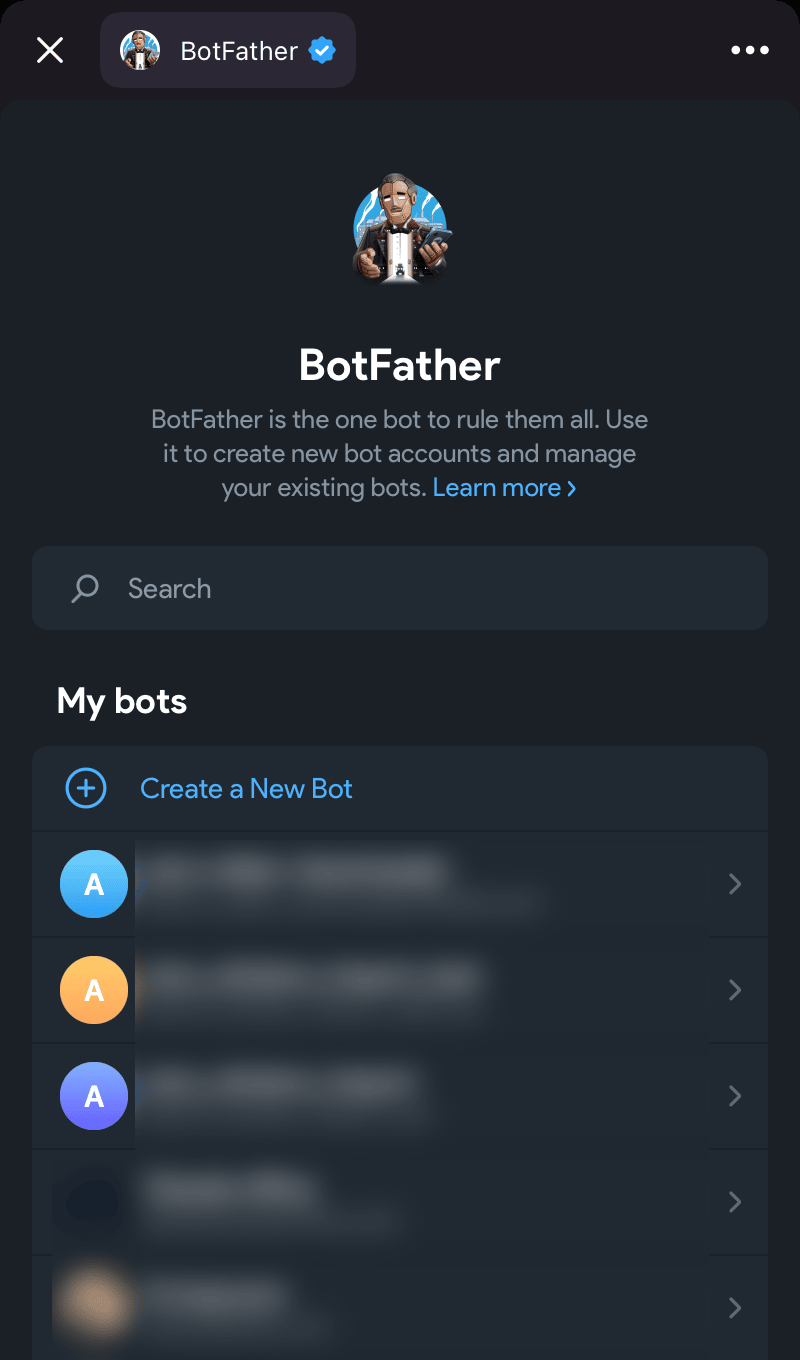
- Open @BotFather in Telegram — the official Telegram bot for creating bots — and click “Open” on the button at the bottom of the chat: the @BotFather window with the list of your bots will open.
- In the “My bots” section, click “Create a New Bot”.
- Enter the bot name — anything, for example
amo stickers: the bot is only needed for importing. You can leave the description (“About”) empty. - Enter the bot username — Latin letters, digits or
_; it must end withbot, for examplealex_amo_stickers_bot. @BotFather will show right below the field whether the username is available. - Click “Create Bot”.
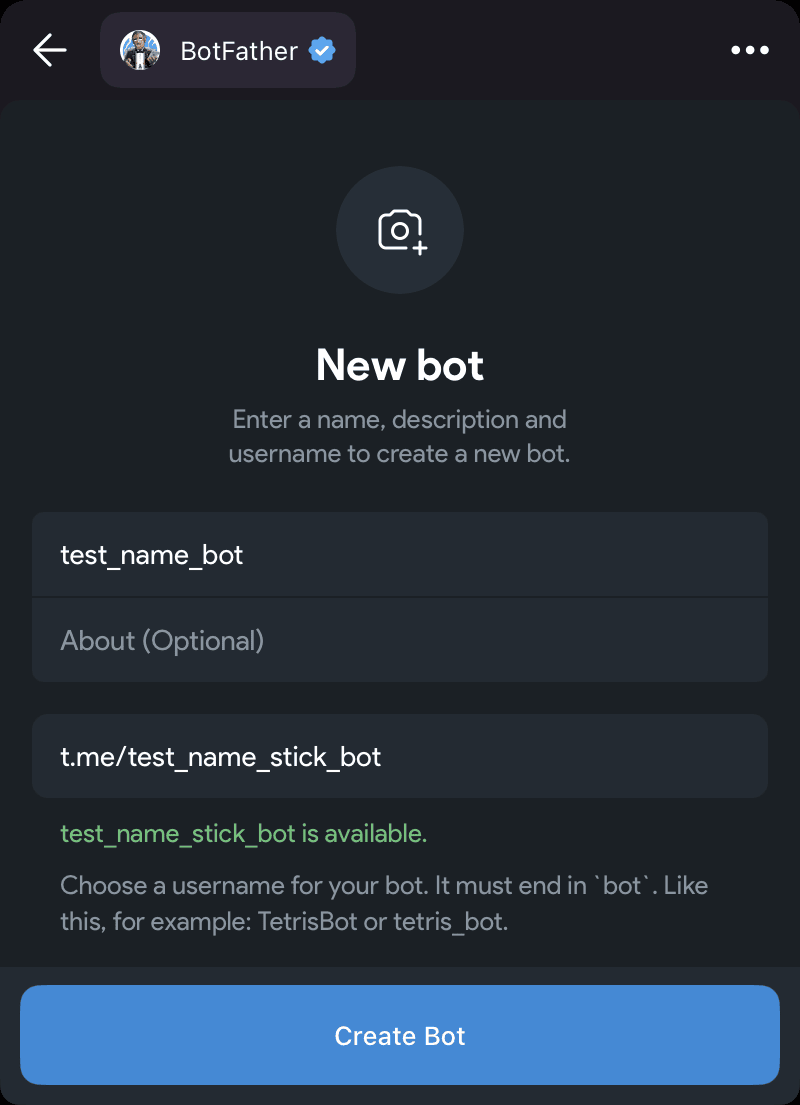
The old Telegram interface has no such window: there you create a bot with the /newbot command in the chat with @BotFather, and it will ask for the name and the username in messages.
2. Copy the token
After the bot is created, the bot page with the token opens — a string like 1234567890:AAH…. Click “Copy”: the whole token will be copied.
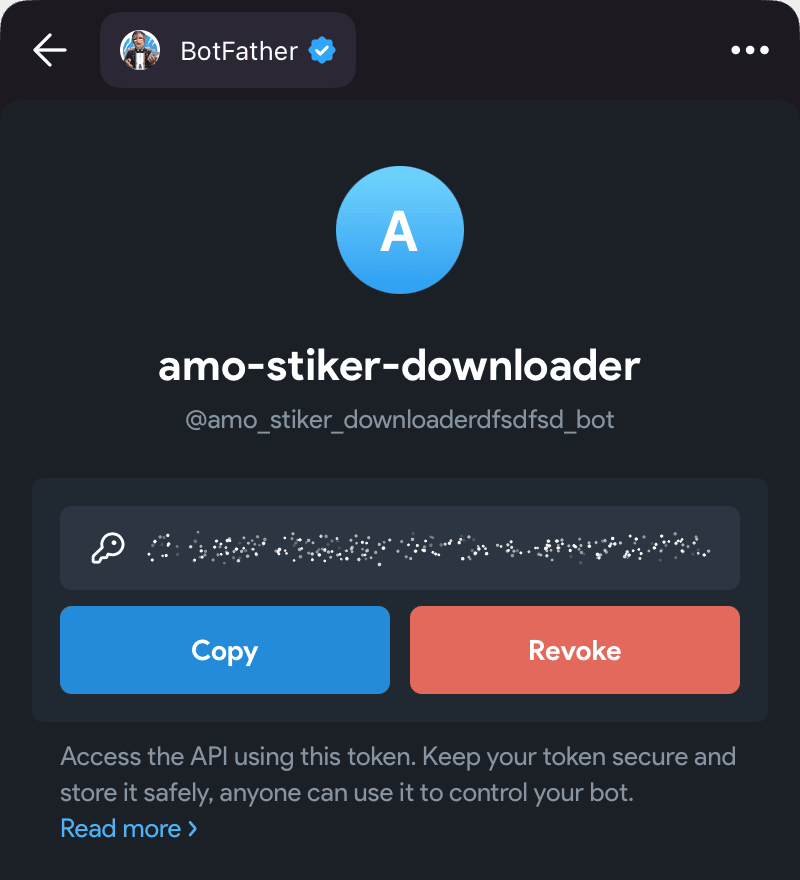
You can copy the token again at any time: open @BotFather, choose the bot in “My bots” and click “Copy”.
3. Paste the token into “Settings”
- Open amo and hover over the sticker button in the message field or click it.
- Click “Settings” at the bottom of the panel.
- Paste the token into the “Your Telegram bot token (optional)” field. The token saves on its own — as soon as you stop typing, leave the field or press Enter.
If “Doesn’t look like a bot token. Expected 123456:ABC…” appears under the field, the token wasn’t copied in full: copy it again following the “Copy the token” step.
Import the pack again following the “Import the pack” step: with your own token it goes through your bot rather than the built-in one.
Other questions are in the “FAQ” section.