

GIF keys
KLIPY search in the “GIFs” mode works right after installation — on the built-in amo stickers key, you don’t need a key of your own. Your own keys are optional:
- a GIPHY key — if you want more GIFs: it adds the “GIPHY” and “GIPHY stickers” sources to the “GIFs” mode;
- your own KLIPY key — if the built-in one is unavailable: then the “GIFs” mode shows the error “The built-in KLIPY key is unavailable — enter your own in settings”.
Your own keys are free, they are stored only in your browser, and each goes only to its own service: the GIPHY key — to GIPHY, the KLIPY key — to KLIPY.
GIPHY
- Open the GIPHY developer dashboard and sign up or sign in.
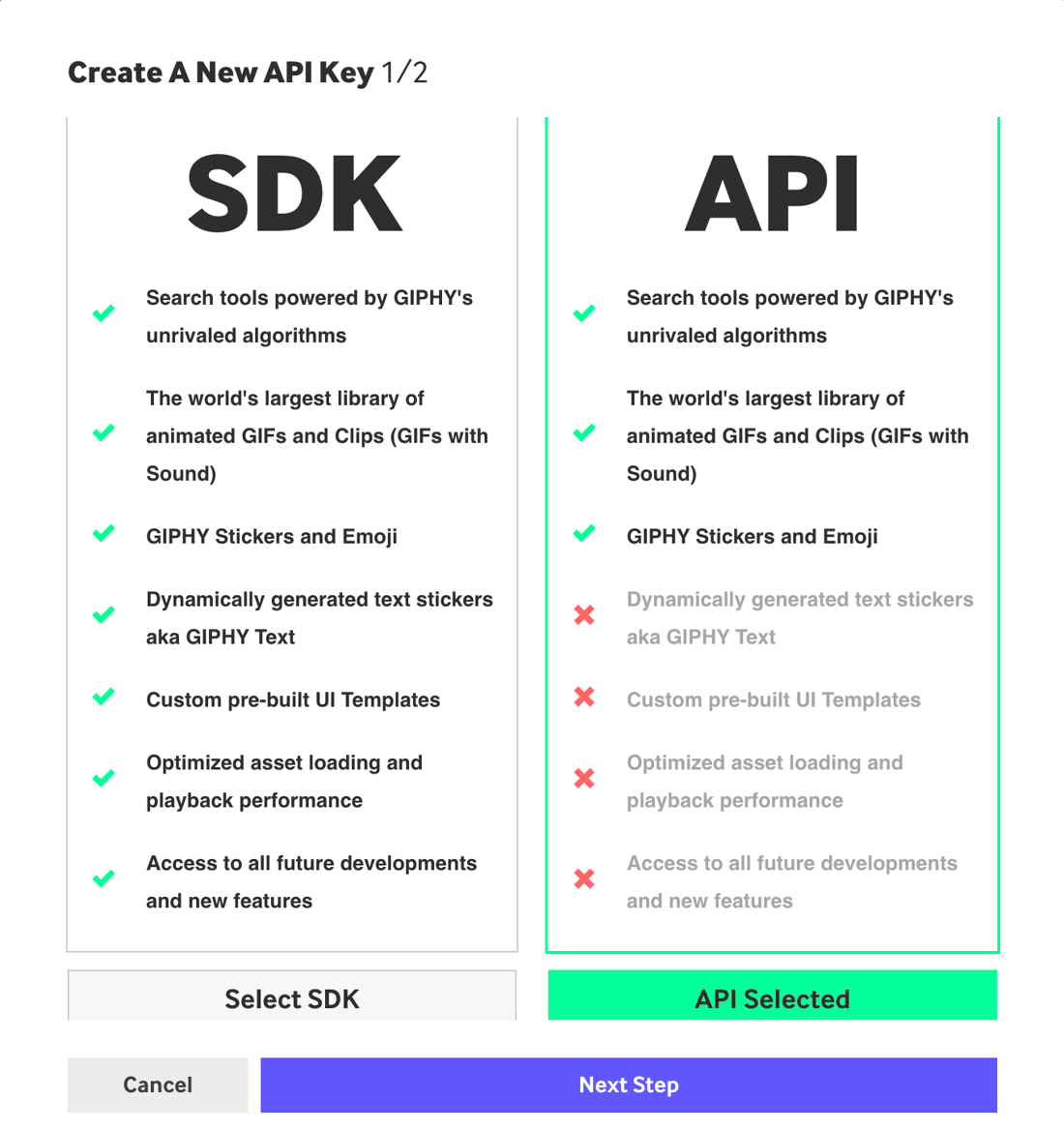
- Click “Create an API Key”, choose the “API” type, not “SDK”, and click “Next Step”.
- Enter an app name and description — anything, for example
amo stickersandStickers for amo, — accept the terms and create the key. - Copy the key from the list of apps on the dashboard.
- In amo, open the amo stickers panel with the sticker button in the message field, and click “Settings” at the bottom of the panel.
- Paste the key into the “GIPHY API key” field. The key saves on its own — as soon as you stop typing, leave the field, press Enter or “Back”.
When you leave the field or press Enter, amo stickers checks the key with a request to the service. The result is under the field:
- “Checking the key…” — the check is running;
- “The key works” — you’re all set;
- “GIPHY rejected the key” — the key was copied partially or with extra characters: copy it again and paste it instead of the old one;
- “Couldn’t check the key” — the service didn’t respond: there is no network or the key hit the request limit. The key is saved, check the “GIFs” mode later.
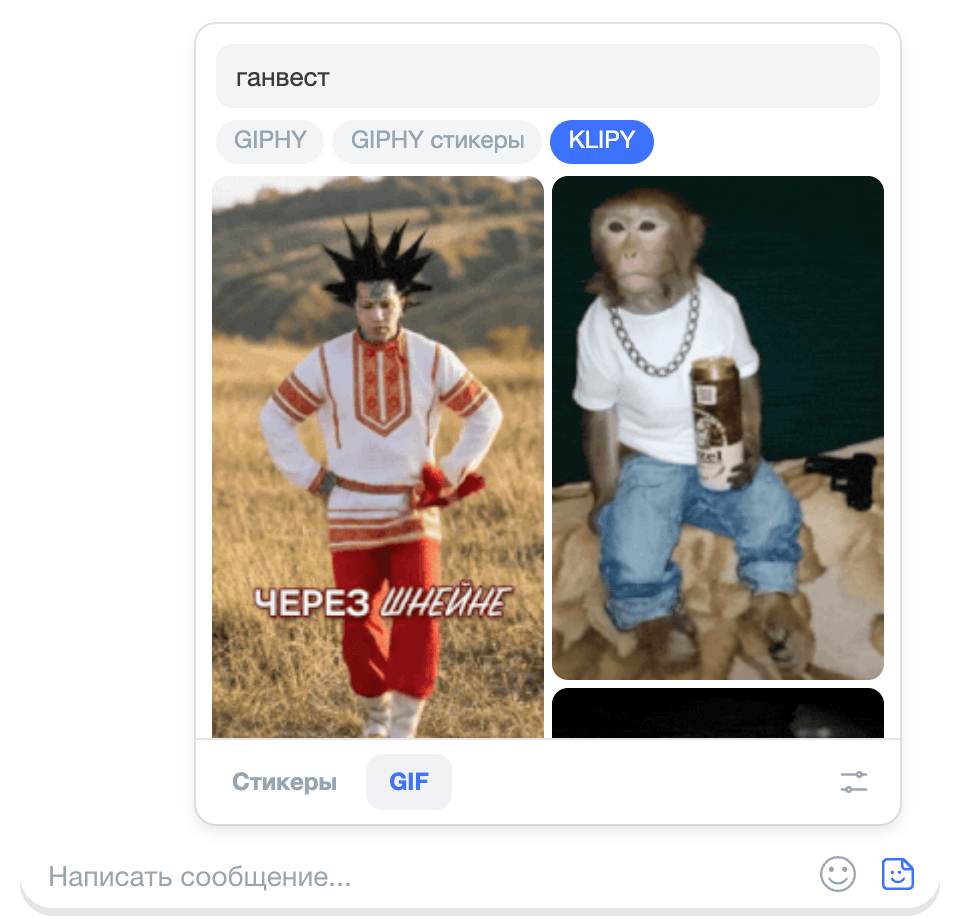
Check it: the “GIPHY” and “GIPHY stickers” sources have appeared next to “KLIPY” in the “GIFs” mode. Both work with one GIPHY key. Without a query, the source feed shows trending GIFs; with a query, search results.
Your own KLIPY key
You need it only if the “GIFs” mode shows the error “The built-in KLIPY key is unavailable — enter your own in settings”: the built-in key is shared by all amo stickers users, and it can hit the KLIPY limit or stop working. With your own key, KLIPY search goes through it.
- Open the KLIPY Partner Panel and sign up or sign in.
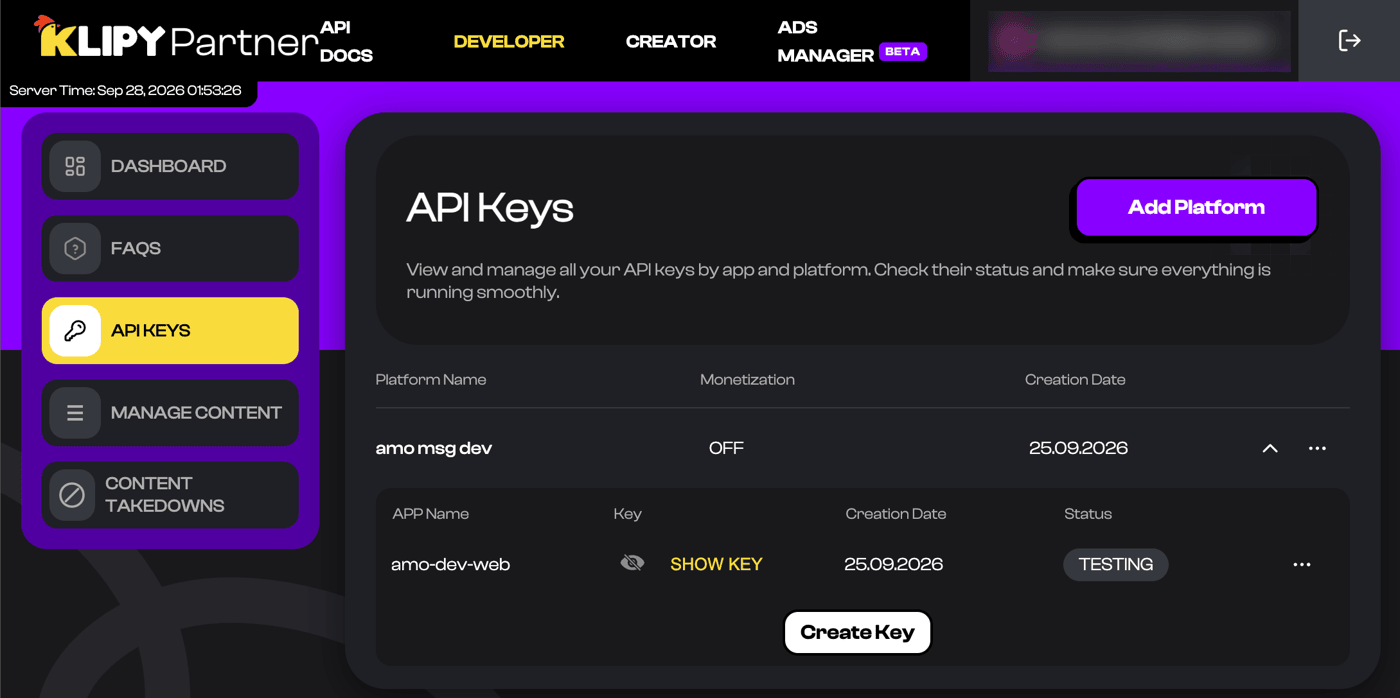
- Go to the keys page — partner.klipy.com/api-keys. Click “Add Platform” and enter any name, for example
amo stickers, then click “Create Key” on the platform. A test key with the “Testing” status, which the panel issues right away, works for amo stickers. - Click “Show key” on the key and copy it.
- In the amo stickers “Settings”, paste the key into the “Your KLIPY API key (optional)” field. It saves on its own, and the check result appears under the field — as with the GIPHY key, only with “KLIPY rejected the key” for a wrong key.
Check it: the built-in key error is gone, and in the “GIFs” mode the KLIPY feed shows trending GIFs without a query and search results with one.
Request limit
Your own free keys are test keys, and they have a request limit:
- GIPHY — 100 requests per hour;
- KLIPY — 100 requests per hour according to KLIPY at the time of writing; the current number is in the Partner Panel.
Each of your own keys has its own limit: the key is personal, and requests of other amo stickers users don’t use it up. Requests are used by:
- search — every time you stop typing in the search field;
- loading the next page — when the feed is scrolled to the end, amo stickers loads the next batch of GIFs;
- trending — the feed without a query when the “GIFs” mode opens;
- key check — one request when you change the key in “Settings”.
The “GIPHY” and “GIPHY stickers” sources share one limit — the limit of the GIPHY key.
If your own key hits the limit, search in this source will stop finding GIFs, and an error will appear in the status bar. Wait: the limit is per hour, and search will work again within an hour. Or switch to another source: if the GIPHY key hit the limit — to “KLIPY”, it works without a key of your own; if your own KLIPY key did — to “GIPHY”, you can get a key for it following the steps above. Recent GIFs in the feed without a query stay at hand.